About the author

Hello, I’m CH FR. This is an article I wrote as an attempt to make “starting out (and evolving) as a YTPMVer” less of a blurry process. The advice and workflows shown here are presented with specific software, but could be applicable anywhere.
If you’re a beginner in YTPMV, or want to get into it, you’ll quickly find out that tutorials can be pretty sparse. This is a natural consequence of the community’s somewhat modest size, but it also comes with a nasty side effect. With little documentation on how to make your first video(s), you’ll be forced to enter semi-public/private spaces like Discord servers to get any guidance past the basics. This requirement automatically filters out people who are too shy to join those spaces, or do not want to do so for other reasons. It also makes one’s “first YTPMV Discord server” a bit of a gamble when it comes to who they’ll stumble across.
This article aims, first of all, to give newcomers some basic tips, and then to point out some key differences between learning YTPMV and general video editing/music production. Being aware of those differences will help a lot in your learning journey. Why do we care about such differences? As said earlier, while there are some useful videos out there (like that Cookie tutorial on different VocalShifter tuning techniques), tutorials are still few and far between, so you’ll naturally want to learn from non-YTPMV resources as you progress and tackle more ambitious projects.
We’ll go through it in order, from audio to visual production. This is not a guide to learning the hobby from scratch; it expects you to have a basic grasp of your software of choice.
You might also notice some recurring themes along the way. So without further ado, let’s get started!
Audio
Keyboard shortcuts
The start might be a bit rough, as you need to develop your ears to better recognize pitches, learn new software, and learn how to use it in a pretty unconventional manner, all at once.
If you approach pitch-shifting the basic “traditional” way, then the first obstacle will probably be pitch-shifting keyboard shortcuts. Music producers might use pitch shifting here and there, but there isn’t really any hobby where you’d spam those keys as frequently as in YTPMV, and the defaults (if there even are any) are horrendous.
In REAPER, for example, you’ll find the pitch shift keys on the top right of your keyboard.
So my first piece of advice would be to move them much closer to common shortcuts. To put it in a more general way:
If an obscure action is at the very core of your craft, you should reduce the friction to it as much as possible
In this example, I set the pitch down/up shortcuts to W/X (Z/X for QWERTY users). Doing so eliminates a huge amount of back-and-forth across the keyboard compared to the default, since item manipulation (copy, paste, cut, duplicate) is closely linked to pitch shifting. Experiment and find what you’re comfortable with.
Batch manipulation
Another thing that’s fairly unique to YTPMV is the amount of audio items you’ll be dealing with, and I really mean TONS of them. It’s pretty much sampling pushed to its limits (well, not exactly, as you could still go one level deeper and do phoneme reconstruction like MorshuTalk, but it’s still noteworthy).
Knowing that, you’ll easily be dealing with hundreds of audio items per track. While the software can probably handle it, you’ll very soon need to manipulate them as batches rather than individually.
While a music producer is able to just change their synth and its presets at any time, YTPMVers need to replace the underlying source file if they want to experiment with a different sample. Some software makes this easier than others.
Here’s an example using REAPER. Of course, after replacing the sample, you’ll need to compensate for the pitch difference between the two. Vegas Pro users do not have an easily accessible “replace selection” feature and will need to replace the actual underlying file to achieve the same result.
Batch manipulation is not just limited to “changing the sample”, much experimentation can be done by just changing its timecode, fade-in/out, length, etc.
As demonstrated here,
Altallows me to move the sample timecode without moving samples,Ctrl+Alton a fade propagates the changes to all selected items (I believe Vegas Pro does it by default), and trim/stretch operations are applied to the whole selection by default (unfortunately, I think you’re out of luck here in Vegas).
Longer samples tend to evolve over time. A scream, for example, might start with a rough sound, evolve into a more sustained note, and end with a bit of a breathy sound, so starting at different points can give wildly varying sonorities. Similarly, the length of a fade-in can make all the difference in whether it sounds plucky or not.
There is no VST that can “fade out each sample”, because the VST can only look at the track as a whole, rather than its individual items, which is why it’s important to be able to do batch manipulation of more precise properties.
Of course, a sampler also makes this kind of manipulation possible and easy; however, you’ll lose out on the ability to change the source timing on each note, making vocal chops or sentence mixing harder to pull off.
Pitching
My personal opinion is that pitch-shifting is the lowest-value activity in YTPMV; time is better spent on any other step of the audio-making process.
There are generally two flavors of difficulty when it comes to pitching: what you’re pitching, and what you’re pitching to.
Let’s start with the first one. Depending on your preferences, you may want to keep some samples less corrected for character, but this can make pitching to the melody by ear harder, as the pitch range of the sample becomes fuzzier. As such, you may end up with a few off-pitches.
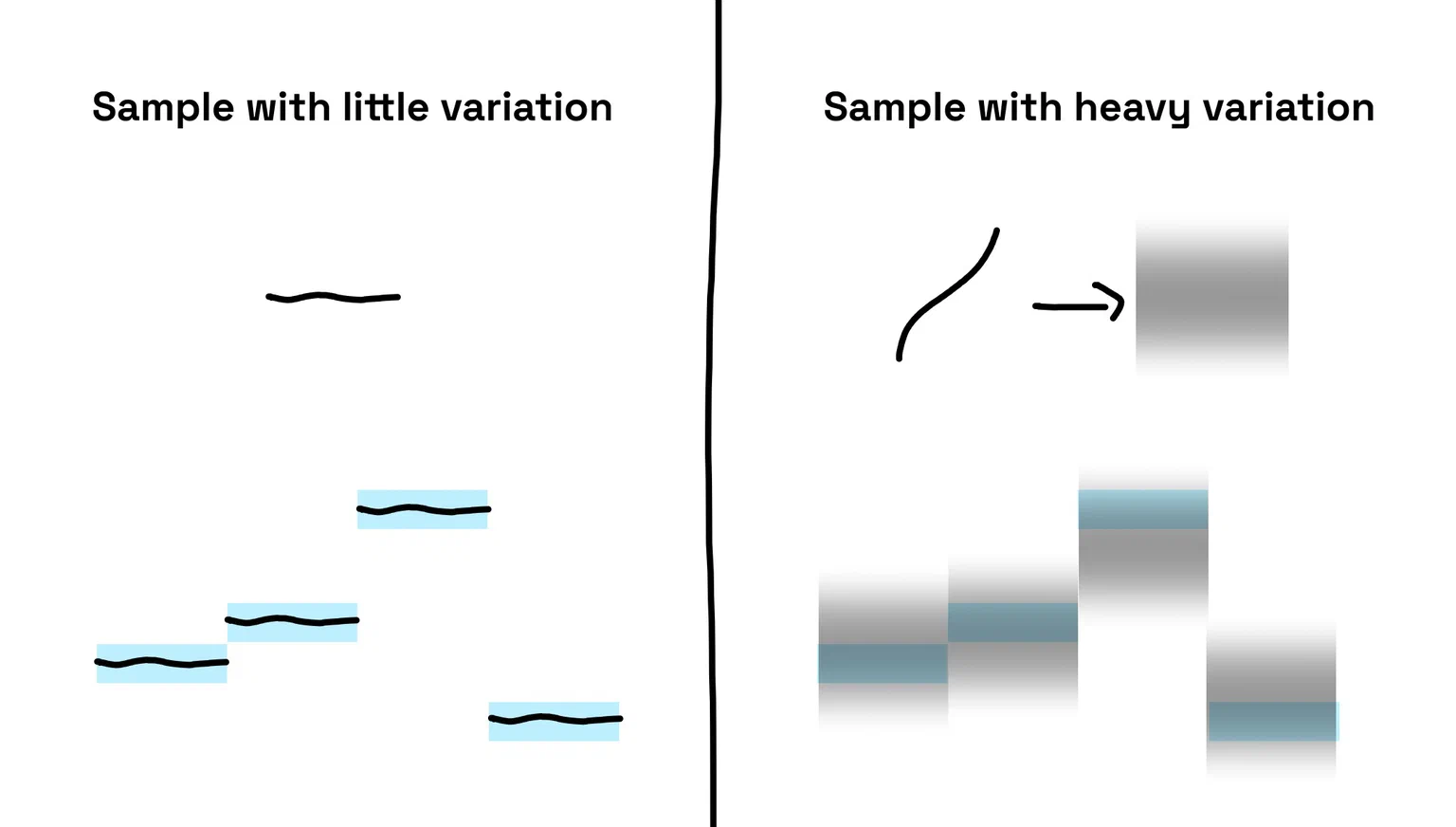
In these kinds of situations, it may be hard to find the exact wrong note without playing the whole melody and finding the part that feels bad.
Fortunately, the fix for this issue is simple: use a placeholder sample with less pitch variation, and only swap in your real sample once you’ve correctly matched the melody (isn’t it great that we just talked about batch replacement earlier?). It’ll be much easier to tell if the whole thing is off by one semitone than to look for “that one off-pitch”.
The second kind of difficulty is directly tied to the BGM you’re covering. If you have a hard time hearing a particular track, there are multiple things you can try.
When we’re not talking about chords, a simple melody can be hard to hear because it’s too low/high in the frequency spectrum and/or because other tracks are getting in the way; the bass melody is one such example. The solution is thus very obvious: get rid of the other instruments (with EQ, stem separation, or whichever method you know of) and pitch the track up one octave.
You can see how the peaks move from the low 100-500 range to 200-1k as the bass becomes easier to hear.
It’s a pretty obvious piece of advice, but it’s a nice first step in understanding that the BGM is not sacred. You should pitch/EQ/balance it as much as needed. I’ve had a few occasions in collabs where a medley’s bass was too strong, so I EQ’d it down for my part, or where the BGM had variable volume throughout the whole thing.
If you don’t do noBGM, this makes the BGM both your guide and a track you should treat like any other.
Other types of tracks are all variations of the same puzzle across different dimensions: if a track is spread across the stereo field (as chords often are), then you can hear it better by lowering center frequencies, or the inverse if we’re talking about the lead melody.
Another tip for chords would be to use the MIDI piano roll with a generic VST first: it makes visualizing and adjusting the chords much easier. Once you’re done, you can use it as a pitch guide for your actual samples.
Of course, there’s one extra variable: your own ability to hear and guess the notes. There isn’t much advice to give there aside from “it’ll get better with practice”, but don’t consider those earlier techniques “cheating”; even as you get better, you should still keep them in your toolbox.
Pitchability
This is an issue that comes up most often when you’re trying to pitch dialog to make a singing voice. Not all sounds will pitch to a nice sound out of the box, if at all. When a sound/sentence just refuses to pitch properly, there are a few ways you can prepare it to be more cooperative with your tuning software:
- This is the initial sample, not timed/stretched at all.
- You can stretch it within your main audio software (in this case, REAPER). This avoids the need to hop between programs, but means the stretching algorithm is only as good as REAPER allows.
- In this case, VocalShifter was used to time the syllables instead.
- However, some syllables are still too short. The final option is simply to take longer syllables from somewhere else to replace those that don’t stretch (and thus pitch) properly.
This fourth option completely prioritizes pitchability at the cost of sounding off when played as-is. Replacing entire syllables or stretching those you have are two ways to get samples that are easier to tune.
Mixing
Ambitious audio-makers will eventually want to expand their knowledge and improve in the mixing department. Thankfully, unlike heavy pitch-shifting, there are LOTS of tutorials for mixing, right? Unfortunately, the oddities of YTPMV strike again, and you may not be able to “just apply” what you see in regular mixing tutorials, which isn’t saying much because those were ALREADY very opinionated!
I lack the kind of true mixing expertise needed to give confident advice. However, I know of audio maestro Shoelace Bother, who has talked in the past about discussing the differences between mixing in music production and YTPMV with a relative of his who’s a professional musician. As such, I contacted him to write a few paragraphs about it, which I’ll quote directly.
We talked about it for a bit, here’s a couple differences we came up with:
If you Google proper EQ for kinds of instruments (certain types of drums, bass, etc.), you’ll notice that a lot of the pictures you get have small bumps here and there. If you were to put this on a YTPMV sample, it would make little to no difference. This is because while music composition has you mixing and mastering instruments premade to have the strength of one made for use in music, YTPMV has you taking a sound effect not being made for music (most of the time) and turning it into a music-ready instrument. Because of this, you will naturally be much more aggressive with VST work when working with samples and your EQs will often be a lot harsher to get those frequencies to stand out. Compressors are also likely a similar case, as a lot of standalone instrument samples are pre-compressed whereas a random sound in a video will need a lot more of it to be punched up properly.
When working in YTPMV audio, there’s a good chance you’ll come across samples that aren’t in pristine quality. A lot of classic sources are only available in muddy or crusty quality while real instrument samples are always prepared in the best quality possible for producers to use (unless they are low quality by design for styles such as lo-fi). Because of this, YTPMV audio makers have to decide whether they want to embrace that audio quality or find ways to compress, equalize and excite that audio to feel higher quality than it originally did for the sake of having a strong and balanced frequency spectrum.
Part of music composition is writing a song to fit a certain emotion. Is it a sad song? An angsty song? A battle theme? You start the project with this in your head and think through what evokes that emotion the most. This very rarely comes up in YTPMV, as most of your thought process is instead spent on rationalizing why your YTPMV should exist, whether a fitting sample or a very creative joke.
Can you share an example of the difference between traditional EQ processing and EQing a sample?
For starters here’s how a kick drum in music is typically enhanced via EQ.
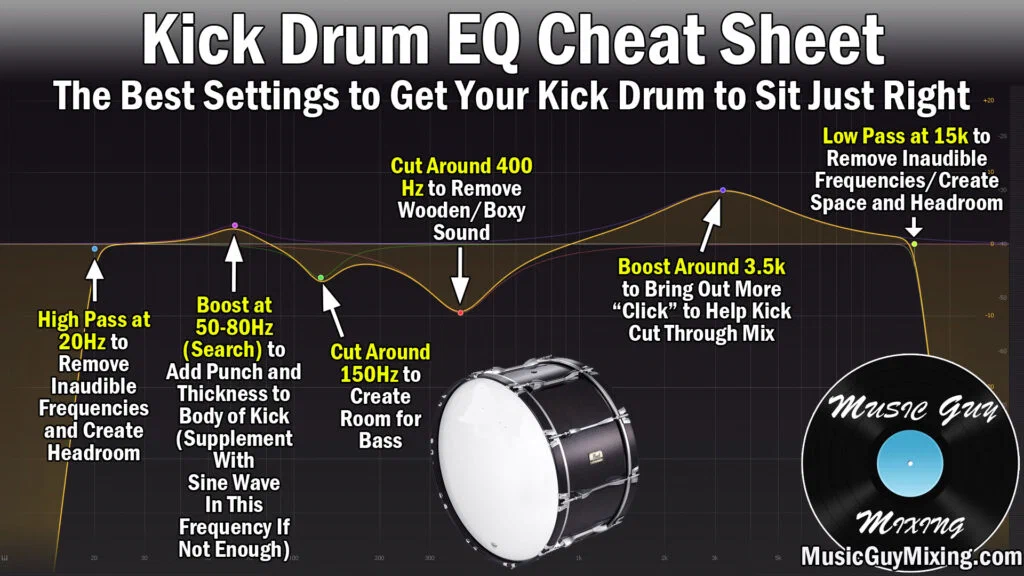
Normally you wouldn’t want to boost the 300-500 range on kicks but I find that it gives the kicks a bit more color in the low ranges instead of sounding like a dull thud.
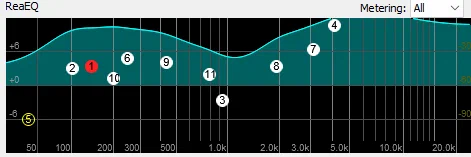
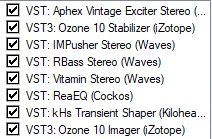
I know you also tend to add a lot of effects to bring more life to your samples (especially when it comes to Chargeman Ken), what does the effect stack typically look like?
- Exciter is to saturate the nearly non-existent high ends of the original sample to make the sample sound less muddy
- Stabilizer is being used as a sub bass boost
- IMPusher, RBass and Vitamin are all combination EQ/compression to get more strength out of the sample, this source in particular requires a lot of punching up
- ReaEQ settings seen below, you have to be very aggressive (I understand that turning the very tips of the EQ range up is a bad thing but I unfortunately don’t have any good brickwall EQ VSTs yet)
- Imager assures that the lows are centered
First is before, second is after.
All in all, you don’t typically find a lot of mixing advice geared toward YTPMV in the wild, and while you can look at regular mixing tutorials, it might help to keep in mind that you may want to push the sliders a bit further than people would normally recommend, as you’re doing more than just “enhancing” an instrument; it often gets to the level of “transformation” instead.
With that said, let’s move on to the second half of this article, where we’ll tackle the visuals process.
Visuals
Box visuals
The two most basic categories of YTPMV visuals are “box visuals” and “everything else”. The former are usually treated as the simpler option, but they come with a few caveats.
For one, while they’re simple, box visuals can very quickly put a huge strain even on more powerful computers if you’re not careful. Years ago, I thought I’d reached some sort of glass ceiling visuals-wise with my old laptop specs, but then got pretty confused when a seemingly much more complex composition (with particles and lens flares and stuff) ran just fine.
The short version is: when you record from OBS, or use a YouTube downloader, you usually just get an MP4 file. But said file uses a complex codec made to save as much space as possible at the cost of decoding complexity. Usually, hobbyists in other communities (like VOD editing or AMV or whatever) can ignore this, but YTPMVers will very quickly feel the pain if they have 10 different 1080p screenflip tracks playing at the same time.
Proxy media is the official term, so you’ll get relevant results by just googling “[your software of choice] proxy media”.
To deal with that, you can take notes from what the pros are doing and consider using proxy media: temporary renders of your source media at a lower resolution and/or in a different codec made for editing videos.
Managing proxy media then becomes a tradeoff between storage space and decoding performance: codecs optimized for editing will be larger but decode faster.
Ultimately, it all comes down to setting up a good source management workflow. If you have short samples, the impact of making proxy media for them will be negligible, but if you’re only ever working with raw, uncut sources, you might have some trouble.
Screenflipping with maths
Though screenflipping is a substep of box visuals, it is a different puzzle altogether.
Of course, you can be satisfied with just left-right, but even that is a lot of work if you’re doing it manually. On top of that, imagine you just missed a note in the middle of your track and now you have to re-flip every following item. It wouldn’t hurt to have something a bit more modular!
Fortunately, “screenflipping” is very easy in theory: you just flip your screen on every new note. And this is very easy to translate into code!
Consider the following sequence:
For flipped items, we can think of the target size value as -1, while for regular items it’s 1. We’ll also take note of each item’s number.
We get this:
Screenflip
Size-X
Index
We quickly find out that the solution is just to check whether the number is even or odd. Put another way:
If index is even: size is -1, if not: size is 1
In a program like After Effects, the simplest form of automated screenflip would be an expression on the scale that goes a little bit like:
[thisLayer.index % 2 ? -100 : 100, 100]
In programs like Vegas Pro that don’t directly offer an expression language, you must rely on user scripts.
The key takeaway is that no matter the software, it is possible to automate screenflipping as long as you can get your items in an ordered and numbered way. Once you do, a lot of options open up to you.
Here are a few examples to give you an idea:
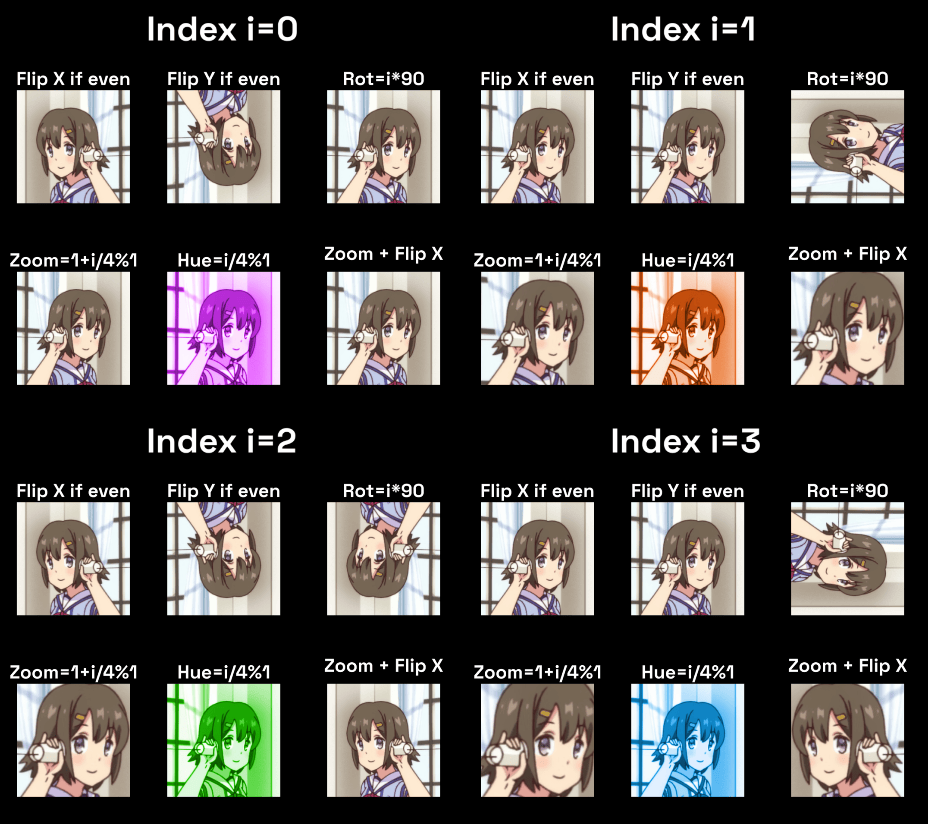
But messing around with the index is only half the battle. To achieve maximum modularity, we should also have complete control over the flip animation.
Making and replacing screenflip animations
If you plan to have some animation in your screenflips, like a zoom in or a little movement, I would advise against doing your screenflips with the keyframes inside of each flip. Instead, you should consider the animation and the “flipping” to be two distinct actions. The animation happens first, and then it is timed and flipped. This means that your animation is essentially “baked” into the flips.
Adopting this mindset allows you to treat the animation as “replaceable”, which will let you experiment a lot more without having to retime your flips.
In this demonstration, the upper half is dedicated to four different animations, while the lower half is what handles the timing and screenflipping. The same can be achieved in After Effects by doing your animation inside of a precomposition, and screenflipping copies of it rather than your original item. As for Vegas Pro users, such a workflow will force you to actually render out the animation you wish to screenflip and replace the source file. However, I believe that the flexibility gained from this method makes the trouble of doing those tiny renders worth it.
BPM and timing
Vegas Pro seems to be the only editing program that cares about BPM… probably because it started as a DAW. If you’re using AE, you could look into Beatgrid or other scripts for BPM-matching.
A BPM grid is very useful for YTPMV, because it’s not only a timing aid for keyframes, but also a very good visual aid that allows you to accurately guess where you are in the song without having to play back a preview. This is especially true if you also made the audio, since you’ll probably have played the song back hundreds of times by that point.
There’s a piece of advice going around saying that people generally shouldn’t edit music exactly to the beat. There’s a kernel of truth to it, but not in the sense that you should purposely make your flips off-time; it’s more about timing scene transitions and stuff like that. (Also, I think the way people are so smug saying this in forums is one of the reasons why we don’t have native BPM grids in more video software. At least, I’ll choose to believe that, but I shouldn’t talk about the way people talk in editing forums or else I might start ranting.)
People commonly ask “how to sync a zoom to the BPM” and other related questions about getting something to happen on every beat. There are a few different methods to this, but all of them are built on a very simple constant:
BPM/60
Or put in plain English:
How many beats are in a second?
The kind of math you can do using that constant may look somewhat random, but it becomes really intuitive once you know the purpose of each operation. So let’s start with a demonstration and break it down piece by piece:
Song attribution: 黒いとこ踏んじゃいけないゲーム
- First, we multiply time by our BPM, which in this case is 135.
- Fusion compositions use frames instead of seconds, so we divide by the framerate, which is 30 (AE users can skip this step).
- The modulus makes the value “loop” every time it goes above 1.
- Since we want a zoom-out in this case, we invert the value by subtracting it from 1.
- We raise the whole thing to the power of 10 to give the curve a sharp start.
- Finally, we adjust the zoom by scaling it down, and then add back our initial value so it goes from 1.10→1 instead of 0.1→0. Now we have a layer that zooms to the beat!
If this still feels a bit abstract, we can further simplify it into three different steps:
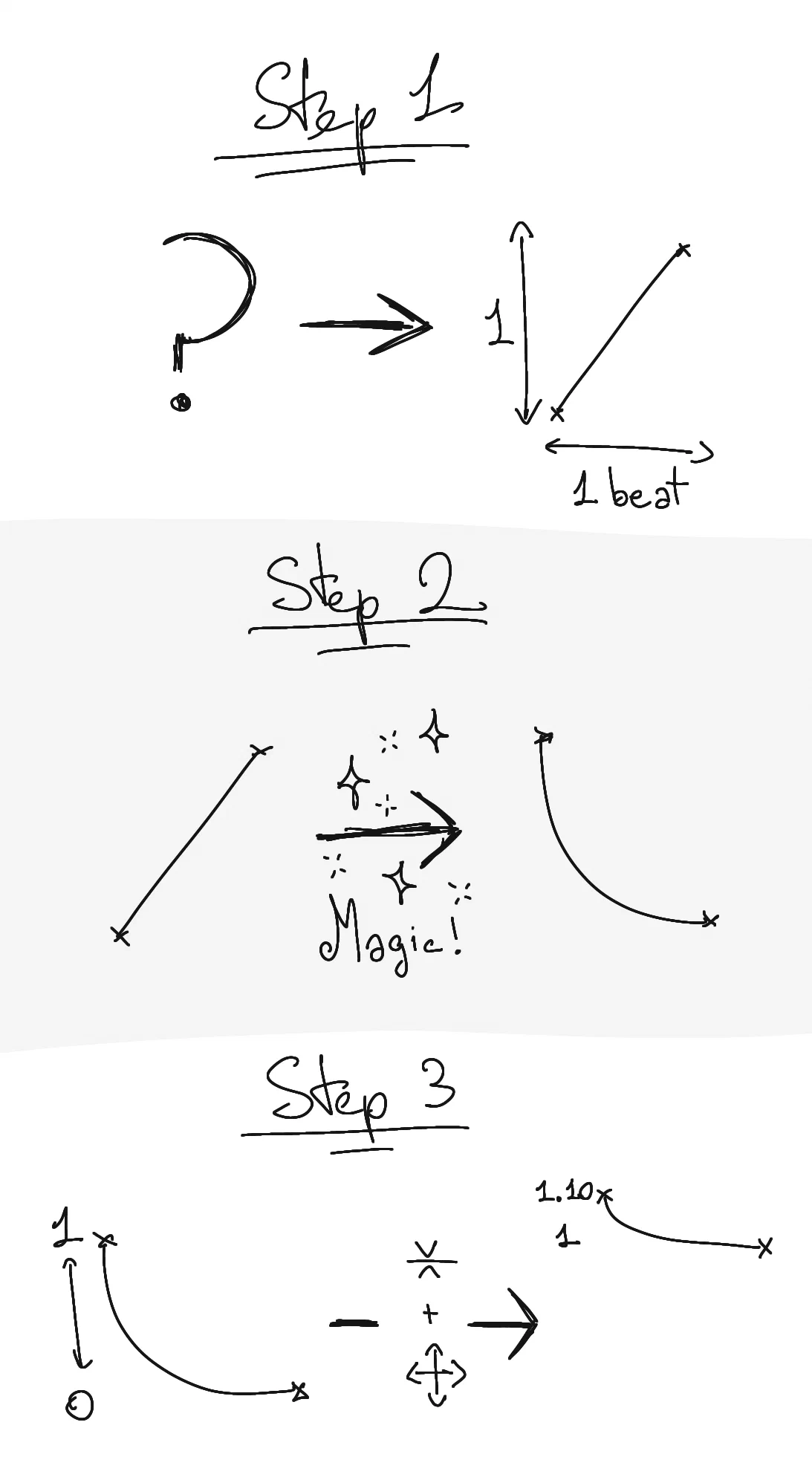
- The only goal of the first step is to get a line that goes from 0 to 1 every beat; this is the entire
time*135/60/30%1part. Why 0 to 1 specifically? Because a straight mapping like this is the easiest to manipulate into any shape you want. - The second step consists of said shape manipulation. This is where you get creative: you get to decide the direction and shape of the curve, but it’s still limited to between 0 and 1. This is where we did the subtraction from 1 and the exponent of 10.
- Finally, once you have a curve you’re happy with, you map it back to a scale and value that make sense in the context of your animation.
Keep those steps in mind, and you’ll have a much easier time. Another trick is to only do step one, then animate something from 0s to 1s in your timeline and sample from that animation using said mapping. That’s right, you can do sampling even in visuals!
Your source material sucks…
Sources downloaded from the internet are most often compressed, degraded, or just ancient. Because of that, you might have to not only learn how to do some compositing tricks like chroma keying or rotoscoping, but also how to do them with garbage-quality sources. It’s a rough world out there, and you’ll very rarely find pristine source material that you don’t have to polish in one way or another.
…and that’s beautiful
I’ll preface this by saying that “you can make things bad on purpose” puts some heavy emphasis on “on purpose”. To put it bluntly: it’s fairly easy to tell whether someone has control over the jankiness or not, so this mindset shouldn’t be used as an excuse.
Or, you know… you could just not do any of the above: make your green screens crunchier, scale up tiny sources into a pixelated mess, and more. Few genres can get away with embracing jank as much as YTPMV/Otomad does, and it’s not uncommon at all to see some authors occupy both ends of the visuals spectrum.
One example is Ahokusa, whose work is a 50/50 split between box visuals played straight…
…and absurd collages.
Big fan of the inverted blue-screen source at the bottom.
You can play to the strengths of this hobby’s derivative nature to make something that is simultaneously very well made and very janky.
(It goes without saying, but of course this also applies to audio.)
Conclusion
I wanted to have a section that talked about applying non-YTPMV techniques to YTPMV but I couldn’t really find a way to say that other than “hey, you can apply non-YTPMV techniques to YTPMV”, realizing as this article is already quite long, I think it’s best to just wrap it up.
So let’s quickly go back over some of the stuff we discussed in this article.
- Reduce the cost of “changing things” (like swapping samples or modifying screenflip animations) as much as possible.
- Placeholder samples and track isolation aren’t cheating.
- Neither is stretching stuff to make it pitch better.
- Box visuals can become very intensive; look into proxy media.
- Screenflipping has lots of automation tricks by now.
- This is very cliché, but after you learn how to do things well, you can learn how to do them badly, and then they become great.
A lot of it boils down to the idea of favoring modularity. It is very important because YTPMV is based on sampling, so you end up with a ton of duplicated items, and those should never become a barrier that prevents experimentation. Modularity isn’t necessarily limited to your software of choice and can extend to your file system too. Reducing friction in file-based operations is especially important for people who use separate software for audio and visuals.
With all of that said, I hope this article has at least helped you learn one or two abnormal techniques that might prove helpful for this abnormal hobby.